Floating Controller
Last update: September 2026 to cover the additions of JEB 5.45
Getting Started#
JEB Pro Floating licenses provide more flexibility than individual JEB Pro licenses, and can be distributed to many users within an organization. A floating build licensed for N seats will allow any N clients to connect to it concurrently. When a client leaves, its seat is vacated, allowing another JEB client to start.

JEB Clients regularly probe the Controller to determine whether or not they are allowed to run. The check is based on the number of seats available in your licensed build. For example, a floating license for 10 seats allows 10 different users to run JEB concurrently.
Installing the Controller#
Unpack the JEB archive to the folder of your choice, and start the controller with default settings:
jeb_wincon.bat -c --controller`
jeb_linux.sh -c --controller`
jeb_macos.sh -c --controller`
Follow the prompt: You will be asked to input your decryption password (provided in the software delivery email), accept the license agreement, and generate a license key.
License key
A single license key needs be generated, for the controller only. Floating clients to not need license keys.
Sample log output:
C:\jeb>jeb_wincon.bat -c --controller
JEB decryption password: ***************
...
<EULA>
...
Write "yes" to agree, then press enter: yes
Hello Nicolas Falliere. Set up your JEB controller by generating a license key. This one-time operation will only take a few seconds.
Please visit https://www.pnfsoftware.com/genlk, and use the following "license data" blob to generate a key
License data: .............................................
Input your license key: xxxxxxxxxxxxxxxxxxxxxxxxxxxxxxx
Mode: Controller for floating clients
Note: X client(s) may simultaneously connect to this controller instance
Listening on 0.0.0.0/0.0.0.0:23477...
By default, the controller will listen on all interfaces on port 23477, and use HTTP for transport.
Stop the controller with Ctrl+C and proceed with the next section.
Controller Settings#
After the first step completed successfully, executing the controller should display something like the following:
C:\jeb>jeb_wincon.bat -c --controller
Mode: Controller for floating clients
Note: X client(s) may simultaneously connect to this controller instance
Listening on 0.0.0.0/0.0.0.0:23477...
As can be seen, by default, the controller is listening on port 23477 on all interfaces, and uses the HTTP protocol. This can be changed by editing the configuration file bin/jeb-client.cfg:
.ControllerInterface = ...: Hostname or IP address (default for controller: all interfaces; mandatory for clients).ControllerPort = ...: Port number (default for controller: 23477; mandatory for clients).ControllerProtocol = ...: Protocol: 'http'(0), 'pseudo_https'(1), 'https'(2) (default: 'http'; mandatory for clients).ControllerMessage = ...: Optional message provided by the controller to the clients and vice-versa, visible on the controller's web portal.ControllerKeystorePath = ...: Path to the keystore, JKS or PKCS12 (for the controller only, mandatory with protocol=2/HTTPS).ControllerKeystorePassword = ...: Keystore password (for the controller only, mandatory with protocol=2/HTTPS).ControllerKeystoreKeyAlias = ...: Optional key alias to select a key (for the controller only, with protocol=2/HTTPS).ControllerKeystoreKeyPassword = ...: Optional key password if it differs from the keystore's (for the controller only, with protocol=2/HTTPS).ControllerAllowedPins = ...: Optional CSV of certificate pins of trusted controllers, used to bypass trust and hostname validation (for floating clients only, with protocol=2/HTTPS)
Protocols currently supported are:
- 0: HTTP transport, default.
- 1: pseudo-HTTPS that uses a built-in keystore; this legacy setting should no longer be used, it will be removed in a future release.
- 2: HTTPS transport, you will need to provide a keystore.
Examples#
- Example: the Controller listens on all interfaces, port 30000, default protocol (HTTP):
.ControllerPort = 30000 - Example: the Controller listens exclusively on localhost, port 30000, uses the HTTP transport:
.ControllerProtocol = 0 .ControllerInterface = localhost .ControllerPort = 35000 - Example: the Controller listens on 10.0.0.25, port 8443, uses HTTPS for transport:
.ControllerInterface = 10.0.0.25
.ControllerPort = 8443
.ControllerProtocol = 1
.ControllerMessage=WELCOME
.ControllerKeystorePath = /path/to/keystore.jks
.ControllerKeystorePassword = keystore_password
Client Settings#
Start your desktop client using one of the standard start-up scripts:
jeb_wincon.bat`
jeb_linux.sh`
jeb_macos.sh`
You will be asked to specify the controller hostname, port, and protocol. You will also be able to configure your proxy settings, if you are using one. If your controller uses a self-signed certificate, you will be able to pin it as well.

Examples#
- Example: the Controller to connect to is at 192.168.23.45, default port (23477), default protocol (HTTP):
.ControllerInterface = 192.168.23.45 - Example: the Controller to connect to is at some-network.com, port 30000, protocol HTTP (explicitly specified):
.ControllerInterface = some-network.com .ControllerPort = 35000 .ControllerProtocol = 0 - Example: the Controller to connect to is at 10.0.0.25, port 8443, protocol HTTPS:
.ControllerInterface = 10.0.0.25
.ControllerPort = 8443
.ControllerProtocol = 2
Certificate pins#
If the controller is using HTTPS as a transport, clients may be connect to controllers using self-signed certificates or a controller whose hostname mismatches what their certificate says. In order to do so, and assuming you trust that server, you will need to provide the certificate hash (the pin) in the .ControllerAllowedPins setting. You may also use the Floating Controller Setup dialog, available through the Edit menu, Options handler.
If trust cannot be established or in case of a hostname mismatch, JEB will show you a warning in the logger. Typically, the log will contain the server's certificate hash.
Intranet Portal#
Your controller portal can be reached by visiting the web page: ControllerProtocol://ControllerInterface:ControllerPort, e.g. http://10.0.0.25:23477 or https://192.168.12.23:35000. It displays information about the controller capacity and currently connected clients.
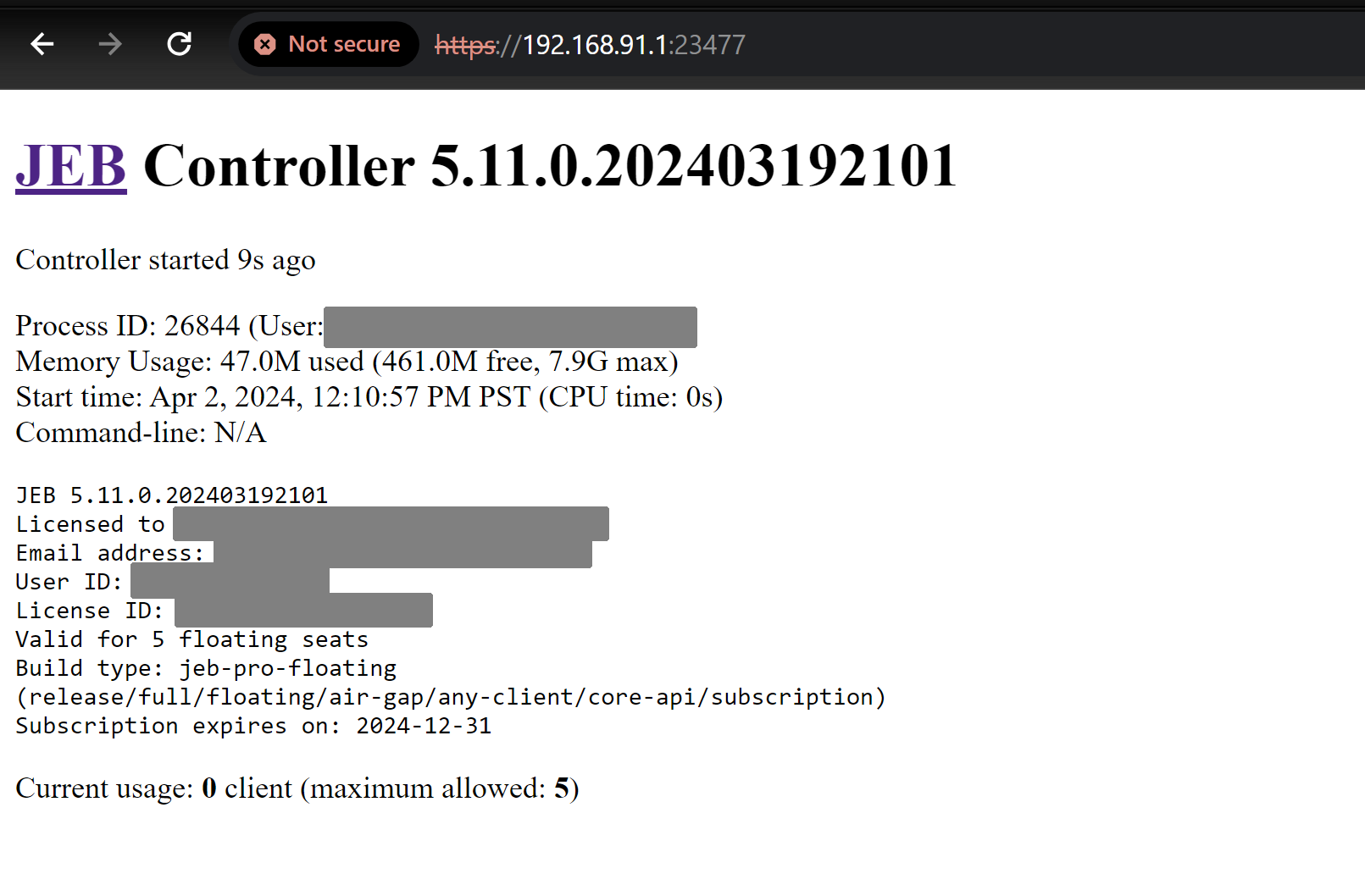
Note that if the selected protocol is https, the browser may notify you that the certificate used is insecure. You may disregard this warning, the certificate is self-signed.
Technical Notes#
- JEB Clients as well as JEB Controller are the same binary file: there is no separate package for the Controller.
- The
--controllerflag and other floating-specific flags are only available for Floating builds. - The Controller should be started before Clients.
- Clients regularly 'ping' the Controller. Therefore, the Controller should always be reachable by running instances of JEB client.
- JEB clients and the Controller may be run in different environments (e.g., a Controller on Linux, Clients on Windows or macOS, etc.)
- Controller settings overrides can be provided by command-line flags
--interface=,--port=,--protocol=, etc. They take precedence over the settings injeb-client.cfg. To see the complete list of arguments, run-c --help. Examples:- Start a controller on Linux, port 36000, listen on interfaces specified in the configuration file (or all if none are specified):
jeb_linux.sh -c --controller --port=36000 - Start a Windows client:
jeb_windows.sh -c --controller --interface=192.168.0.56 --port=36000
- Start a controller on Linux, port 36000, listen on interfaces specified in the configuration file (or all if none are specified):
Updating the Controller#
There is no auto-update feature in the controller. The update procedure is:
- Check your registered email address for a JEB update email ("JEB xxx is available...")
- Download the software archive
- Copy the archive to the root of your JEB folder and rename the file to
update.zip - Create a text file named
update.pwd - Store the email-provided password inside this file
- Start your controller as normal (e.g.,
... -c --controller); the update will be installed automatically
Interaction between a client and a controller#
The video below shows what happens when a client connects and disconnects from a floating controller licensed for a single seat.